

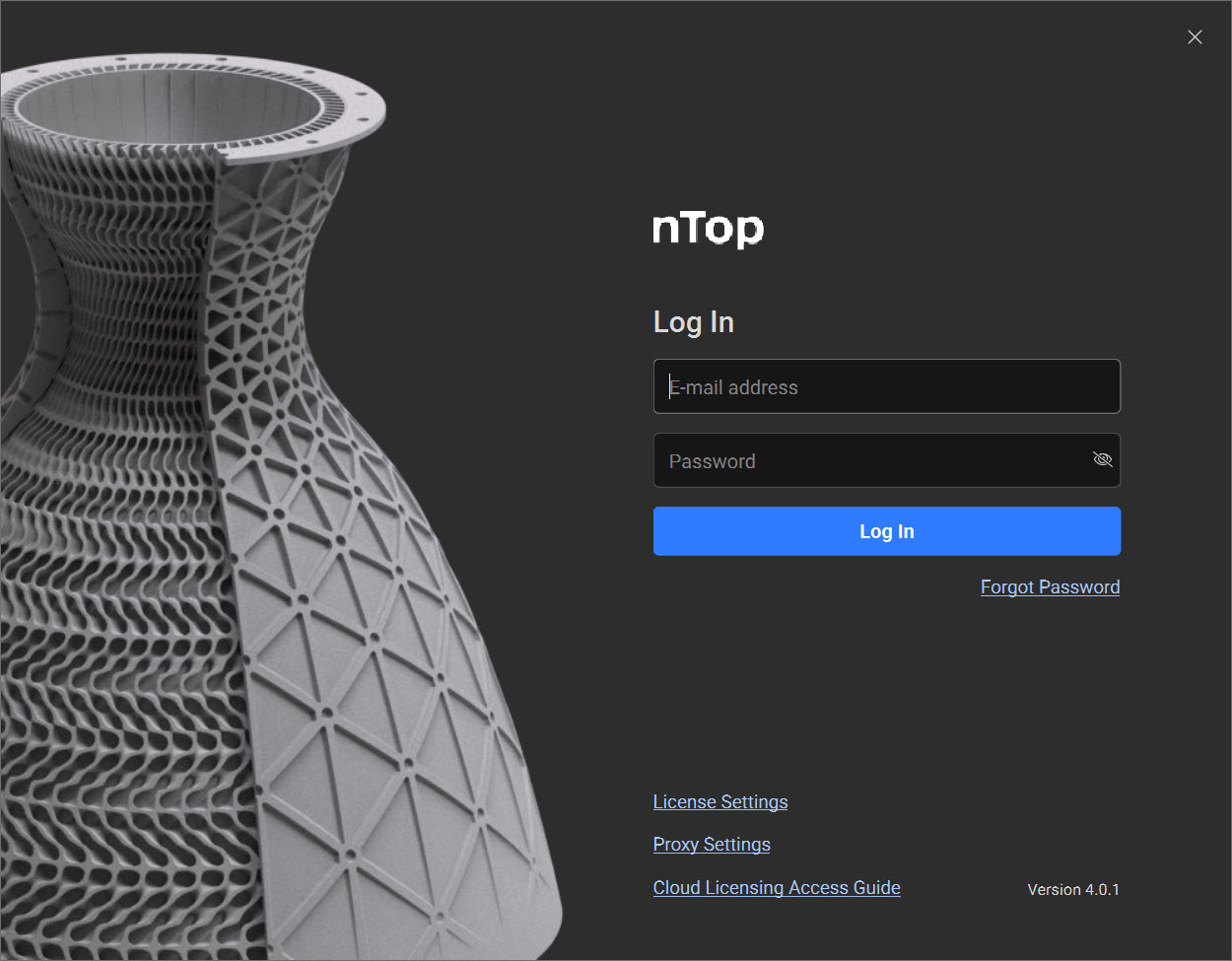
 Once nTop successfully installs, upon opening, the Login Screen appears. It prompts you to log in with the email address and password associated with your account.
- Email Address: Email address used to create your account.
- Password: The password to your account.
- Forgot Password: If you have forgotten your password, press this button. Follow the steps in the email sent to you to reset your password.
- Use Local License: If your organization uses local licenses, use this button instead of logging in.
- Log In: Press this when you are ready to log in.
- Configure Proxy Settings: If your company uses a proxy server, press this button to set it up. Read more about this option here.
- Cloud Licensing Whitelisting Guide: Follow this link if you are having issues connecting to the licensing server.
- Certificate errors: If nTop can’t connect to log in because of a certificate error, for example behind a TLS-inspecting proxy or with an on-prem server that uses a private certificate authority, see TLS Certificate Errors.